Connect Over USB Tethering (Windows)
Wi-Fi is the default way to reach Blender, but some networks block phone-to-computer traffic entirely: guest Wi-Fi, office and school networks, mesh systems with client isolation, or a computer with no Wi-Fi adapter at all. USB tethering turns your phone into a wired network adapter for the PC, which sidesteps all of that. This guide covers the Windows 11 side of that connection.
USB tethering ends with the same manual IP address and UDP port entry used by Camera Controller Light, so these steps apply to the full add-on and to Light alike.
Why Tethering Fails More Often Than Wi-Fi
When a Windows PC has several active network adapters at once (Wi-Fi, Ethernet, VPN, virtual adapters), Windows does not always route traffic to the phone through the new tethered adapter, and the add-on's displayed IP can end up belonging to the wrong network entirely. The single most reliable fix is to leave only the tethered phone connected and disable every other adapter before you start the server in Blender.
Step 1: Enable USB Tethering on Android
- Connect the phone to the Windows PC with a USB cable.
- On the phone, open Settings > Network & Internet > Hotspot & Tethering.
- Turn on USB Tethering.
- If Android asks to allow the connected computer to access phone data, allow it — this is the standard USB file-transfer prompt, not a Camera Controller permission.
Windows installs the phone as a new network adapter the first time you do this; the first connection can take a few seconds longer while the driver installs.
Step 2: Disable Every Other Network Connection
Open Control Panel > Network and Internet > Network Connections (or press Win + R, type ncpa.cpl, press Enter). Right-click and Disable every adapter except the new tethered one — most commonly your Wi-Fi adapter, any Ethernet connection, and any VPN adapter:
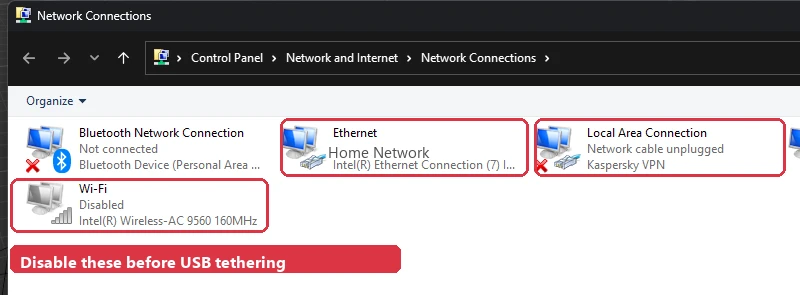
Turning Wi-Fi off from the taskbar is not always enough — Windows can keep routing traffic through a Wi-Fi adapter that is merely idle. Right-click the adapter in Network Connections and choose Disable to be sure.
With only the tethered adapter active, Windows has exactly one path to reach the phone, which is what makes the IP address the add-on shows actually correct.
Step 3: Start the Server and Read the IP in Blender
- In Blender, start the add-on server as usual from Server and Connection.
- With only the tethered adapter enabled, the IP Address shown by the add-on now belongs to the tethered network, not your regular Wi-Fi or Ethernet.
- Note that IP address and the UDP Port (default
5005).
The QR code still encodes this same IP and port, but scanning it only works while the phone's camera can see the code — with a cable plugged in and the phone next to the keyboard, manual entry is usually faster.
Step 4: Connect the App Manually
- Open Camera Controller and go to the Connection screen.
- Enter the IP Address and UDP Port from Blender exactly as shown.
- Tap Connect.
- Optionally save the endpoint as a favorite — see Connect the Android App.
Step 5: Allow Blender Through the Windows Firewall
The first time Blender's UDP server answers over the new tethered adapter, Windows may show a Windows Defender Firewall prompt for Blender (or Python, depending on how Blender is installed). Allow access on Private networks. If you dismissed this prompt earlier for Wi-Fi, Windows treats the tethered adapter as a separate network and may ask again.
Troubleshooting
- The IP shown in Blender still looks like your old Wi-Fi network: another adapter is still enabled, or Windows has not finished switching routes. Re-check Network Connections, disable anything still active, then stop and start the Blender server again.
- Connection times out: confirm the phone still shows USB Tethering as on — some phones turn it off automatically after the cable is unplugged and replugged.
- Nothing works after re-enabling Wi-Fi later: that is expected. Re-enable Wi-Fi (or your normal adapter) once you are done tethering, and reconnect over Wi-Fi normally as described in Connect the Android App.
- Still stuck? Follow the full Connection Troubleshooting checklist.