Add-on Updates
Starting with version 2.6.0, the Android app delivers add-on updates. Each app release includes the matching Blender add-on, and the app sends it to Blender over your local network. Blender asks for your confirmation, installs the new version, and reloads the add-on.
Version 2.6.0 is the last add-on version published to the online update channel. From 2.6.1 onward, new add-on versions are delivered only through the Android app.
The app now also sends minor updates, such as 2.6.1 to 2.6.2. They are optional: your current add-on keeps connecting to the app, so you can update now or later. Major updates, such as 2.6 to 2.7, are still required before the app connects. See Optional and Required Updates.
Update from the App (2.6.0 and Later)
- In Blender, open the Camera Controller tab and click Start Server.
- In the app, make sure the Connection screen has the IP address and port shown in Blender.
- Open the Blender Add-on page: tap Install beside Blender Add-on on the Connection screen, or open Settings > Blender Add-on > Open Blender Add-on.
- In Update Over the Network, check the two version tiles: In Blender and In this app. When Blender's version is older, the page says whether the update is optional or required.
- Tap Update in Blender. The app sends the edition Blender is running, Full or Light.
- In Blender, a box appears at the top of the Camera Controller panel with the version, the phone's IP address, and Install / Discard buttons. Click Install only if you sent it.
- Blender stops the server, installs the new version, and reloads the add-on. Click Start Server again and reconnect the app.
- Tap Check Again on the Blender Add-on page. The app confirms the update when Blender reports the new version.
Optional and Required Updates
The app connects to any add-on with the same first two version numbers (X.Y), so updates come in two kinds:
- Optional (minor) update, for example 2.6.1 to 2.6.2. The connection keeps working. After connecting, the app shows a short blue notice pointing to Settings > Blender Add-on; you can update now or later. From add-on 2.6.1, Blender shows a quiet box, Optional update: v… and This version still connects., with a normal Install button.
- Required (major) update, for example 2.6.x to 2.7.0. The app refuses the connection and shows the version warning; Update Add-on opens the Blender Add-on page. Blender shows Required update: v… and The app needs it to connect., with a highlighted Install button.
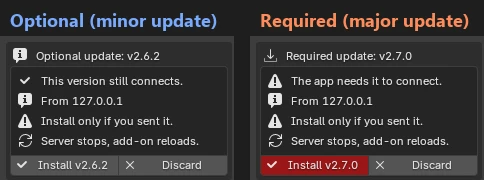
Both boxes have the same layout: the title at the top, the details in an inner box, and the Install / Discard buttons in one row. Only a required update highlights Install in red.
Both kinds keep the Install only if you sent it. line: any device on the network could send a package, and the sender chooses the version it announces.
The app only delivers the package. Blender verifies it (size, SHA-256 checksum, add-on edition, and version) and waits for you to click Install. If you did not send an update, click Discard.
Requirements for Network Updates
- Blender and the phone must be on the same local network, as for a normal session.
- The Camera Controller server must be running in Blender.
- The installed add-on must be version 2.6.0 or later. Earlier add-ons cannot receive updates from the app; see the next section.
- Blender must be able to accept a short local connection from the phone. If a firewall prompt appears for Blender, allow it on private networks.
Moving from an Add-on Older than 2.6.0
Add-ons before 2.6.0 do not understand network updates. The app detects this and says so. Update them once, by either method:
- From the app: open the Blender Add-on page, tap Share or Save to Device, and install the ZIP in Blender by dragging it onto the Blender window (or with Edit > Preferences > Get Extensions > ⌄ > Install from Disk). See Install the Blender Add-on.
- Add-ons 2.2.1 to 2.5.x: in Blender, use Check for Updates in the Camera Controller sidebar or preferences. The online updater installs 2.6.0.
From 2.6.0 on, use the app for every update.
Full and Light Editions
The Full and Light add-ons are separate extensions. An update never turns one edition into the other: the app sends the edition that Blender reports, and Blender refuses a package for the other edition. To switch editions, install the other ZIP from the corresponding tab of the Blender Add-on page.
The Online Update Check in 2.6.0
The 2.6.0 add-on still contains the online update check from earlier versions. Because 2.6.0 is the last online release, that check reports that no newer version is available online; newer versions arrive through the app. Automatic checks can be turned off in Edit > Preferences > Add-ons > Camera Controller > Add-on Updates.
From 2.6.1 the online check is removed from both editions: there is no Check for Updates button, no automatic check when Blender opens, and no update request to the internet. The add-on only installs the updates the app sends, after you click Install.
If an Update Fails
The Blender Add-on page and the Blender panel show the specific reason: no answer from Blender, an add-on older than 2.6.0, an update already waiting in Blender, or an installation error. See Add-on and Dependency Problems.